Introduction to PC Cleaning
Maintaining the internal cleanliness of a personal computer (PC) is crucial for ensuring optimal performance and longevity of the hardware. Regular cleaning is often overlooked by users, yet it plays a vital role in preserving the functionality of critical components. Dust and debris accumulation can quickly obstruct airflow, leading to overheating issues that can adversely affect the effectiveness and a lifespan of the internal hardware.
Over time, dust collects on fans, heat sinks, and circuit boards, reducing the efficiency of thermal management systems. As a result, components may run hotter than intended, which can lead to thermal throttling—a condition where the CPU or GPU reduces its performance to prevent overheating. It is not only detrimental to their functionality, but also increases the likelihood of hardware failure and unexpected shutdowns, particularly during resource-intensive tasks.
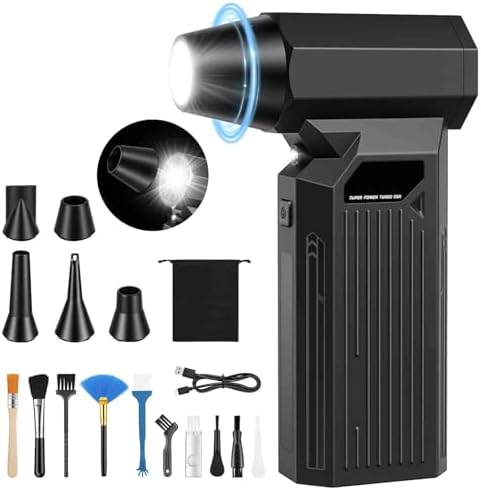
- 【Powerful Motor for Deep Cleaning】Equipped with a high-performance brushless motor, this compressed air duster delivers ...
- 【Adjustable Speed】With 4-speed adjustable settings and an exclusive Storm Mode, this electric air duster allows you to m...
- 【Cordless & Rechargeable Design】Forget messy cables or short battery life. This cordless compressed air duster features ...
Moreover, a cleaner PC tends to operate more quietly, as dust-free fans function more smoothly. Users might also notice an improvement in overall system responsiveness when their hardware is free from unnecessary obstructions. The effort put into cleaning PC internals pays off, providing a better computing experience and potentially extending the life of the hardware, which can eventually lead to cost savings by delaying the need for replacements.
In summary, the regular cleaning of your PC internals is essential for avoiding performance issues, reducing overheating risks, and enhancing the overall lifespan of your machine. By understanding the importance of maintaining a dust-free environment within your computer, you ensure that your investments in technology yield their maximum benefits over time.
Gathering Necessary Tools and Materials
Cleaning your PC internals requires careful preparation, including the procurement of essential tools and materials that facilitate a safe and efficient cleaning process. Each tool serves a specific purpose and contributes to maintaining the integrity of sensitive hardware components.
First and foremost, a set of microfiber cloths is invaluable for wiping down surfaces without scratching delicate components. Unlike traditional cloths, microfiber alternatives trap dust and debris effectively, making them ideal for cleaning circuit boards and other intricate areas without leaving lint behind.
Another essential item is compressed air. This tool allows you to blow away dust and debris from hard-to-reach places, such as the fans and heatsinks. When using compressed air, ensure you hold the can upright and apply short bursts to prevent moisture from damaging electronic components.
A reliable screwdriver set is also critical, particularly one that includes various sizes and types, such as Phillips and Torx screwdrivers. This will enable you to safely open the PC case and remove components as needed. Be cautious when handling screws, as losing them can complicate reassembly.
Finally, an anti-static wrist strap is a necessary precaution against static electricity, which can cause irreversible damage to computer components. By wearing a wrist strap connected to a grounded surface, users can safely discharge any built-up static before touching sensitive parts such as RAM or the motherboard.
By gathering these tools before commencing the cleaning process, you will ensure that the task is completed efficiently and safely, minimizing risks to your valuable computer hardware.

- 【Super High-Speed Turbo Jet Fan】The compressed air duster reaches speeds of up to 200,000 RPM, 180g of air pressure, and...
- 【Reusable & Energy-Saving】Unlike one-time-use compressed air cans, the air blower pc cleaner can be used more than 500 t...
- 【Durable Battery & Fast Charging Speed】This cordless compressed air duster is powered by a rechargeable 10,000 mAh batte...
Safety Precautions Before Opening Your PC
Before embarking on the task of cleaning your PC internals, it is vital to prioritize safety to ensure both your equipment and yourself remain unharmed. The first step in this process is to power down your computer and unplug it from the electrical outlet. This action is essential as it eliminates the risk of electric shock, which can occur if the system is still connected to power while being handled.
Grounding yourself is another important precaution. Static electricity can easily accumulate on your body, posing a significant threat to sensitive hardware components such as RAM, CPUs, and GPUs. To mitigate this risk, you should wear an anti-static wrist strap or occasionally touch a grounded metal surface, such as the metal casing of the PC, to discharge any static build-up. This will help prevent any accidental static discharge that can damage your components.
Ensuring that you work in a clean and well-lit environment is equally important. Dust and debris can negatively affect performance and potentially damage components during the cleaning process. Before you begin, clear away any clutter from your workspace and ensure you have adequate lighting, allowing you to see inside the PC clearly. A clean environment also helps to keep any contaminants out of your PC, reducing the risk of new particulates entering the system during the cleaning.
Additionally, have all necessary tools readily available. This includes a soft brush, microfiber cloths, and compressed air. With your tools nearby, your cleaning process will be smoother and more efficient. By taking these safety precautions seriously, you prepare yourself for a successful and safe internal cleaning of your PC, protecting your sensitive hardware from unnecessary risks.
Opening Your PC Case: Step-by-Step Guide
Opening your PC case is a fundamental task for routine maintenance, including cleaning and hardware upgrades. However, ensuring that this is done safely is critical to protect sensitive components inside. Here is a step-by-step guide to assist you in accessing your PC's internals without risking damage.
First, prepare your workspace. Make sure you have a clean and static-free environment. It is advisable to wear an anti-static wrist strap to prevent electrostatic discharge (ESD) from damaging components. Gather the necessary tools, which may include a screwdriver, especially if you have a case with screws.
Next, determine what type of PC case you have. Many modern cases are designed with either screws or a tool-less mechanism for convenience. If your case uses screws, identify the type needed (typically Phillips head). Locate the screws, usually on the back or side of the case, and remove them carefully. Keep these screws in a safe place, as losing them can make reassembly difficult.
If your PC is equipped with a tool-less design, look for latches or knobs located either on the side panel or rear of the case. Gently release these mechanisms to unlock the side panel. Some cases allow you to slide the panel off, while others may require you to lift it upwards.
As you open the case, observe the interior layout. Take note of the various components such as the motherboard, power supply, and storage drives, which will guide you in your cleaning process. Ensure you avoid touching any metallic parts or connectors unnecessarily, as this could cause damage.
Finally, proceed with your cleaning or upgrades as intended, but remember to handle all components with care. Once you have completed your tasks, close the case by reversing the steps you took to open it. This careful approach helps maintain the integrity of your hardware while allowing you to efficiently clean your PC internals.

- Super Power Turbo Fan: The WOLFBOX MegaFlow100 electric air duster delivers impressive speeds of up to 150,000 RPM, gene...
- Versatile Cleaning Tool: Featuring 5 nozzles and 2 brushes, the WOLFBOX electric air duster is perfect for cleaning elec...
- Reuse and Cost-Efficiency: Made from durable materials, the WOLFBOX air duster offers a long battery life and can be reu...
Cleaning Fans and Cooling Systems
Maintaining the cleanliness of the fans and cooling systems within your PC is crucial for optimal performance and longevity. Dust buildup can severely impede airflow, leading to overheating and potential hardware failure. Therefore, it is essential to adopt a systematic approach to clean these components effectively.
First, gather the necessary tools for cleaning. Compressed air is one of the most effective tools for removing dust from fan blades and cooling systems. When using compressed air, ensure you hold the can upright to prevent any liquid propellant from escaping, which could cause damage to sensitive components. It is advisable to perform the cleaning in a well-ventilated area to facilitate the dispersion of dust particles.
Begin by carefully disconnecting your PC from the power source. Locate the fans, typically found attached to the CPU cooler and the case. Using the compressed air, blow short bursts of air into the fans while avoiding spinning the blades too rapidly, as excessive speed may lead to wear or damage. It is wise to use a wooden or plastic stick to gently hold the fan blades in place while you clean. This method ensures that the blades do not spin during the cleaning process.
Next, focus on the cooling systems, including heat sinks and radiators. Gently blow air through these components to dislodge any accumulated dust, enhancing the overall efficiency of the cooling systems. Additionally, consider using a microfiber cloth slightly dampened with isopropyl alcohol to wipe the surfaces of heat sinks. This will help remove any sticky residue that compressed air might not completely eliminate.
Regularly cleaning your PC’s fans and cooling systems will not only improve airflow but also enhance cooling efficiency, thereby contributing to improved system performance and reliability.
Cleaning the Motherboard and Internal Components
Cleaning the internal components of a PC, particularly the motherboard, graphics card (GPU), random access memory (RAM), and power supply, is essential for maintaining optimal performance. Dust and debris can accumulate within these components, leading to overheating and decreased efficiency. Therefore, it is crucial to approach cleaning with care and the right techniques.
First, ensure that the power supply is disconnected and the computer is completely powered off. Wearing an anti-static wrist strap can help prevent electrostatic discharge, which can damage sensitive hardware. Begin by removing the side panel of your case to access the internal components. It is advisable to work in a clean, well-lit area to minimize the risk of contaminants.
For cleaning the motherboard and RAM, use a can of compressed air to gently blow away dust particles. Hold the can upright and use short bursts, ensuring that the nozzle is not too close to the components to avoid moisture accumulation. For stubborn debris, a soft brush with natural bristles can aid in loosening dirt while being gentle on the surfaces.
The GPU can similarly be cleaned using compressed air. In cases where the card has fan vents, it might be necessary to remove the GPU from the motherboard for more thorough cleaning. Ensure that any thermal paste on components is not disturbed unless a full reassembly or maintenance is planned.
As for the power supply, it is generally not advisable to open it for cleaning. Instead, use compressed air to clean its external surface and allow ventilation holes to breathe. Regular maintenance of these components, without drastic interference, ensures longevity and optimal performance. By following these careful cleaning techniques, you can maintain the integrity of your PC while protecting delicate hardware.

- COMPLETE DEEP CLEANING: Easily blast away trapped dust and debris from PC's, Laptops. Games Consoles, Tablets, and TV's ...
- INSTANT POWER: With a flick of a switch, unleash a never-ending stream of clean, filtered and highly accurate air flow t...
- ERGONOMIC: The lightweight and robust design houses an industrial 500 watt (.0.75hp) motor that will never lose pressure...
Handling Cables: Organization and Cleaning Tips
Maintaining a clean and organized interior of your PC is crucial not only for aesthetics but also for optimizing airflow, thereby improving overall performance. One of the key aspects of internal maintenance involves the handling of cables. Cable organization begins with disentangling any knotted or twisted cables, as this can restrict airflow and cause unnecessary stress on the connectors.
Start by carefully removing ties or clips that have fastened the cables together. Work systematically, one cable at a time, to ensure that you not only avoid damaging the connectors but also prevent further tangling. Keeping track of where each cable originates from is essential; consider labeling cables if necessary. This practice will ease future maintenance and component replacement.
Once the cables are disentangled, utilize cable ties or sleeves to secure them. Cable ties provide a simple yet effective solution for bundling cables together according to their purpose—such as power cables, data cables, and peripheral connections. Sleeving cables can add an additional level of neatness while allowing for better airflow. However, ensure that you do not pull the ties too tightly, as excessive pressure can damage the cables or connectors.
Cleaning the cables is the next step in maintaining a tidy PC interior. Use a soft, lint-free cloth lightly dampened with distilled water to wipe down the cables gently. If more thorough cleaning is required, a mild cleaning solution specifically designed for electronics can be used. Avoid any aggressive cleaning agents that may leave residue or cause damage to the connectors. Moreover, it is advisable to disconnect the cables from the motherboard or components before cleaning to mitigate any risks associated with moisture exposure.
By following these best practices for cable organization and cleaning, you can ensure that your PC’s internal environment remains orderly and conducive to effective cooling and operation.
Reassembling Your PC and Final Checks
Once the internal cleaning of your PC is completed, the next significant step is reassembling the components and securely closing the PC case. The process requires careful attention to detail to ensure that each part is correctly positioned and securely fastened.
Begin by reinstalling any components that were removed during the cleaning process. This typically includes reinstalling the graphics card, RAM sticks, storage devices, and any other peripherals. It is crucial to refer to the motherboard manual for specifications on how to position these components correctly, as improper installation can lead to hardware malfunctions.
After placing all components back in their respective slots, ensure that you properly connect all power cables and data cables. Take special care with the CPU power connector and the power connectors for your graphics card and storage drives. These connections must be secure to ensure reliable power delivery when you power on your system.
Before closing the PC case, conduct a thorough inspection of the interior space. Check for any leftover tools or cleaning materials that could interfere with the operation of the PC. Items such as screwdrivers or cloths should be removed from the interior, as they pose a risk of short-circuiting components or obstructing fans, leading to overheating issues.
Once everything has been checked and confirmed, gently place the side panel back onto the case, ensuring that it fits snugly. Use your screws or thumb screws to securely fasten the panel in place. A tight closure helps to keep dust and foreign particles from entering the case, maintaining an optimal environment for your hardware.
Perform one final check by making sure all screws are tightened properly and that no cables are pinched between the case and components. Following these steps will ensure that your PC is reassembled correctly and ready for optimal performance.
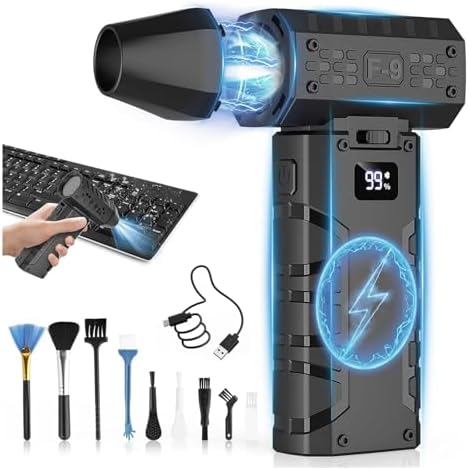
- 【Powerful Turbo Airflow】- This compressed air duster delivers a powerful blast with turbo technology, reaching speeds up...
- 【Long Battery & LED Display】- Featuring a built-in 6000mAh battery for up to 1 hour of continuous use and equipped with ...
- 【Reusable Compressed Air】- A compact, rechargeable alternative to disposable compressed air cans. This reusable air dust...
Conclusion and Maintaining Cleanliness
In summary, maintaining a clean interior environment for your personal computer is critical for ensuring its optimal performance and longevity. Throughout this post, we have discussed the necessary precautions to take when cleaning your PC internals, highlighting the importance of using appropriate tools and techniques to avoid damaging sensitive hardware components. It is vital to approach the cleaning process thoughtfully, as improper handling can lead to hardware failures or reduced efficiency.
To maintain cleanliness in your PC, it is recommended to establish a regular cleaning schedule. This helps to ensure that dust and debris do not accumulate, which can potentially obstruct airflow and contribute to overheating. A good rule of thumb is to clean the interiors of your PC every three to six months, depending on the dust levels in your environment. Additionally, consider placing your PC in a less dusty area and using dust filters on intake fans to prevent particulate matter from entering.
Furthermore, creating a dust-free environment extends beyond just the PC itself. Regular cleaning of the surrounding area, using air purifiers, and ensuring that pets are kept away from the computer can also significantly impact the amount of dust that accumulates within the system. Utilizing static-free cloths and appropriate cleaning agents while performing maintenance is essential to preserving hardware integrity.
By adhering to these best practices for cleanliness and maintenance, users can help safeguard their PCs against performance issues and extend the lifespan of their valuable components. Regular maintenance is not just a good practice; it is a crucial element of responsible PC ownership.

0 Comments