Introduction to Custom PC Building
Building a custom PC is an increasingly popular choice for technology enthusiasts and gamers alike. Unlike pre-built systems, which often come with limited upgrade options and a one-size-fits-all approach, a custom PC allows users to select components tailored to their specific needs and preferences. From the processor to the graphics card, every element can be customized to achieve the best performance for tasks, whether it be gaming, graphic design, or general productivity.
The benefits of building a custom PC are manifold. Precision is a key factor; users can handpick high-quality parts that align with their individual requirements, resulting in enhanced performance and efficiency. Moreover, a custom setup often proves to be more cost-effective over time, providing better performance per dollar spent when compared to many pre-built systems. This can often lead to a more satisfying experience as users can dedicate resources where it matters most for their particular usage scenarios.

- Elite Gaming & Creative Performance: Powered by the AMD Ryzen 7 5800X with 8 cores and 16 threads, this powerhouse CPU d...
- Professional-Grade Multitasking: With a massive 16GB of high-speed DDR4 RAM, this system handles heavy multitasking, str...
- Blazing-Fast Storage for Games & Projects: Equipped with a 1TB NVMe SSD, enjoy ultra-fast boot times, near-instant game ...
This guide serves as a comprehensive resource for both novices and seasoned builders alike. Beginners will find clear instructions and accompanying explanations that demystify the building process, empowering them to create their own systems with confidence. For more experienced builders, this guide will help refine existing skills and introduce new techniques that can enhance their future projects. Given the rapid advancements in technology, even seasoned builders can benefit from an updated look at component compatibility and assembly.
In summary, whether one is embarking on their first build or looking to refine their existing knowledge, the journey of building a custom PC promises not only a learning experience but also the satisfaction of creating a machine that is uniquely theirs.
Understanding the Basic Components
Building a custom PC involves knowledge of its essential components and understanding how they interact to create a functional system. This section presents an overview of the fundamental parts that comprise a personal computer, highlighting their roles in the overall assembly.
The Central Processing Unit (CPU) serves as the brain of your PC, responsible for executing instructions and processing data. A powerful CPU can significantly enhance your system’s performance, making it crucial for gaming, content creation, or multitasking tasks.
The Graphics Processing Unit (GPU), or video card, is equally important, particularly for those interested in gaming or graphic design. It handles rendering images, animations, and video, allowing for high-quality output and fluid gameplay.
The motherboard acts as the main circuit board, connecting all components of the computer. It houses the CPU, RAM, and other vital peripherals, facilitating communication between them. Choosing the right motherboard also influences compatibility with other hardware components.
Random Access Memory (RAM) is critical for a PC's performance, providing temporary storage for data being processed. More RAM allows the system to handle multiple tasks simultaneously without lag, making it essential for gaming and intensive applications.
The power supply unit (PSU) provides electricity to all components, converting AC power from the wall into DC power. It is important to select a reliable PSU that meets your system's power requirements to ensure stability and efficiency.
Storage devices, such as Hard Disk Drives (HDD) and Solid State Drives (SSD), are where data is permanently stored. SSDs are faster and more reliable than HDDs, significantly improving load times and overall system performance.
Finally, the case houses all these components, providing protection and ensuring proper airflow to maintain optimal temperatures. Choosing the right case is essential for both aesthetics and functionality.

- Unleash Next-Level Performance: The XUM Titan Gaming PC combines an AMD Ryzen 5 5600G processor with Radeon Vega 7 integ...
- Ample Memory & Lightning-Fast Storage: Enjoy seamless transitions between tasks with 16GB of DDR4 RAM, while the 256GB N...
- Stylish Design with aRGB Lighting: Elevate your setup with vibrant, customizable aRGB illumination that complements the ...
Choosing Compatible Parts
Building a custom PC requires careful consideration of component compatibility to ensure optimal performance and system stability. The first step in this process is understanding the important compatibility factors such as socket types, form factors, and power requirements, among others.
The CPU socket type is crucial as it determines which processors can be installed on the motherboard. Each CPU is designed to fit a specific socket type; for example, Intel and AMD processors are compatible only with their respective socket types. Therefore, when selecting a motherboard, check the manufacturer's specifications to confirm compatibility with your chosen CPU.
Next, the form factor of the motherboard must be taken into account. Different form factors, like ATX, Micro-ATX, and Mini-ITX, determine the physical dimensions of the board and the type of case it will fit into. Ensure that the case you intend to use is compatible with the motherboard’s form factor to avoid any installation issues.
Power requirements also play a significant role in determining compatibility. Review the wattage requirements of the components, especially the graphics card and CPU, to ensure your power supply unit (PSU) can deliver sufficient power. It is advisable to choose a PSU with some overhead to accommodate potential upgrades and maintain system stability.
To facilitate the process of ensuring compatibility, numerous online resources and tools are available. Websites such as PCPartPicker can help you check for compatibility across various selected components. Users can create a list of desired parts, and the tool will automatically flag any compatibility issues. Utilizing these resources streamlines the building process, allowing builders to focus on assembling a high-performance custom PC without the worry of incompatible parts.
Gathering Your Tools and Workspace Setup
Building a custom PC requires the right tools and a properly set up workspace to ensure a smooth assembly process. First and foremost, consider investing in high-quality screwdrivers, particularly a Phillips head screwdriver, as this is the most common type of screw used in PC components. A magnetic screwdriver can also be advantageous, as it can hold screws in place during installation, reducing the risk of drops and loss.
Another essential tool for your build is an anti-static wrist strap. This device is designed to prevent electrostatic discharge (ESD) from damaging sensitive computer components, such as the motherboard and graphics card. When assembling your PC, make sure to wear this strap and connect it to a grounded surface. Additionally, using a mat designed for assembly can help mitigate the risks of ESD.
Cable management supplies are also crucial in creating a clean and organized build. Velcro straps or cable ties can be used to bundle excess cabling, preventing clutter and promoting airflow within the case. A pair of scissors will be necessary to cut these ties to the required lengths. Keeping tools like these handy ensures that your workspace remains organized throughout the building process.
Before starting, clear a flat surface where the build can take place, ensuring that there is adequate room for the case, components, and tools. It's advisable to work in a well-lit area to clearly see small connectors and screws during installation. An organized workspace not only fosters efficiency but also reduces the chances of damaging components due to misplaced tools or accidental spills.

- NVIDIA GeForce RTX 3050 6GB, NVIDIA Ampere Streaming Multiprocessor, 2nd Generation RT Cores, 3rd Generation Tensor Core...
- AMD 5000 Series Ryzen 7 5700X Desktop Processor 8 cores 16 Threads 36 MB Cache 3.4 GHz Upto 4.6 GHz AM4 Socket 500 Serie...
- 1TB NVME SSD Solid State Drive (For Rapid Start Up, File Saving and Faster Desktop Performance)
Step-by-Step Assembly Process
Building a custom PC can be a rewarding experience, and the assembly process is a crucial stage that requires careful attention and methodical execution. Begin by preparing your workspace; ensure it is well-lit, and free from static electricity by using an anti-static wrist strap. Start by installing the CPU onto the motherboard. Carefully align the CPU's notches with the socket on the motherboard and gently lower it into position, securing it with the lever provided.
Next, install the RAM modules. Identify the correct DIMM slots, a process often outlined in the motherboard manual, ensuring optimal dual-channel configuration. Line up the notches on the RAM with the slots and firmly press down until the clips on either side click into place.
Once the CPU and RAM are installed, the next phase involves mounting the motherboard in the case. First, secure the I/O shield, which is essential for connecting external peripherals. Align the motherboard with the standoffs in the case, ensuring that all holes are accessible; then use screws to secure it firmly. Be careful not to over-tighten the screws, as this can damage the motherboard.
After securing the motherboard, it is time to install the power supply unit (PSU). Position the PSU according to the design of your case, typically at the bottom or top, and secure it with screws. Following this, connect the necessary cables from the PSU to the motherboard, ensuring that 24-pin and 8-pin connectors are attached firmly.
Proceed to install your storage devices, either HDD or SSD, in their designated slots, ensuring they are adequately secured. Conclude the assembly by establishing connections for your graphics card and any additional components. Connect cables methodically, keeping wire management in mind to enhance airflow within the case. After reviewing connections, proceed to power on your custom PC.
By following these structured steps, you can avoid common pitfalls and build a custom PC that meets your gaming or productivity needs. Take your time, double-check each connection, and enjoy the process!
Setting Up BIOS and Installing the Operating System
Once the hardware of your custom PC is assembled, the next step is to set up the BIOS (Basic Input/Output System). This crucial step ensures that your hardware is recognized and properly configured to work together effectively. To access the BIOS, restart your computer and press the designated key (usually F2, Delete, or Esc) during the initial boot process. This key may vary depending on the motherboard manufacturer, so it is advisable to consult the manual for specific instructions.
After entering the BIOS, the first task is to check and adjust necessary settings. Start by ensuring that the system recognizes all installed components such as the CPU, RAM, and storage drives. If any devices are not detected, verify the physical connections, as this can indicate loose cables or improper installation. Additionally, check if your motherboard requires a BIOS update to support your hardware's latest features. If an update is necessary, download the appropriate file from the manufacturer’s website and follow their guidelines for installation.
With the BIOS configured correctly, you can now proceed to install the operating system. Begin by inserting the installation medium—this could be a USB flash drive or a DVD containing the OS. Restart your PC and access the boot menu (often by pressing F12 or a similar key) to select the boot device. Follow the on-screen prompts to proceed with the installation, selecting the appropriate options as you go. Pay careful attention to the partitioning of drives and ensure that you select the correct disk to install the OS.
During installation, you may encounter issues such as boot errors or drive detection problems. If these arise, refer back to the BIOS settings to confirm the boot order or device configurations. Properly configuring your BIOS settings and methodically installing the operating system will set a solid foundation for your custom PC
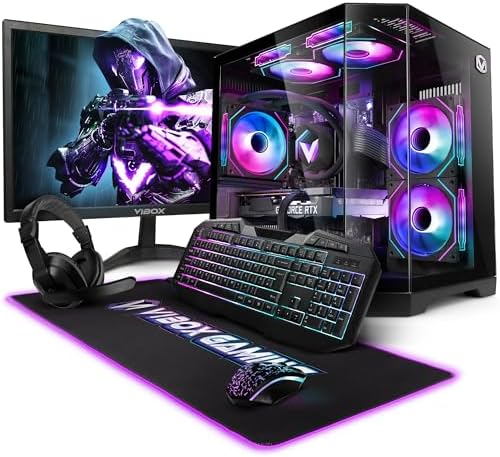
- Nvidia Geforce RTX 3050 6GB GDDR6 RAM
- AMD Ryzen 7 5700X (16 Threads / 12MB SmartCache / 65W TDP)
- 500GB SSD (For Rapid Start Up, File Saving and Faster Desktop Performance)
.
Installing Drivers and Software
Once you have successfully installed the operating system on your custom PC, the next critical step is to install the necessary drivers and software. Drivers act as intermediaries between the hardware components and the operating system, ensuring that each part functions correctly and efficiently. It is essential to prioritize the installation of drivers for your graphics card, motherboard, and any peripherals connected to your PC.
To begin with, visit the manufacturer's website for each component to download the most up-to-date drivers. For graphics cards, both NVIDIA and AMD provide user-friendly utilities that can auto-detect and install the latest drivers. For the motherboard, it is important to download chipset drivers, network drivers, and any specialized drivers for features specific to your board, such as audio or RAID controllers. Ensuring these are current improves the system's performance and stability.
In addition to drivers, installing essential software to enhance your user experience is equally vital. First and foremost, a reputable antivirus program should be on your list to safeguard against potential security threats. Consider security software that includes real-time scanning and malware protection for comprehensive coverage. Additionally, installing system monitoring tools can be beneficial. Software like HWMonitor or CPU-Z allows you to keep track of your system's temperatures, performance, and component specifications effectively.
Furthermore, consider utility software that improves overall system efficiency, such as disk cleanup tools and system optimizers. These applications can help manage storage space and enhance performance by optimizing system settings. Together, the installation of drivers and essential applications ensures that your custom-built PC runs smoothly and securely, fully harnessing the potential of each component.
Cable Management and Final Touches
Effective cable management is a critical aspect of building a custom PC, serving both aesthetic and functional purposes. By keeping cables organized, users can create a clean and visually appealing look, while also ensuring optimal airflow within the computer case. Poor cable management can lead to restricted airflow, resulting in higher temperatures and decreased performance.
To achieve tidy cable management, it is advisable to route cables behind the motherboard tray when possible. This technique not only hides the cables but also utilizes the space inside the case more efficiently. Most modern cases come equipped with cable management features such as tie-down points, Velcro straps, or cable channels. Utilizing these features will significantly enhance the overall appearance of the build.
Another important factor to consider is the length of the cables. Ensure that cables are neither too tight nor excessively loose. Properly sizing the cables will help in routing them efficiently without causing stress on connectors. Additionally, using modular power supplies can greatly simplify cabling, as users can select only the necessary cables for their components. This not only reduces clutter but also improves airflow by minimizing tangles and obstructions.
Once the cables are organized, it is pertinent to perform a final inspection of the build. Check all connections to ensure they are secure, as loose cables can cause instability or hardware malfunctions. Additionally, verify that airflow paths are clear; fans should have an unobstructed path to intake and exhaust air effectively. Lastly, check the alignment and seating of all components such as the GPU, RAM, and storage drives, confirming that everything is properly installed and functioning.
In conclusion, well-executed cable management and thorough final adjustments not only improve the look of a custom PC but also positively impact its performance and longevity. Taking the time to refine these details is fundamental to creating a reliable and visually appealing custom PC build.

- Powerful Gaming & Multitasking: Equipped with the AMD Ryzen 7 5700X, an 8-core, 16-thread processor, this system deliver...
Troubleshooting Common Issues
Building a custom PC can be a rewarding experience, but it is not without its challenges. After assembling your system, you may encounter various issues that can hinder performance or prevent the computer from operating altogether. Identifying and resolving these problems is critical for ensuring a seamless user experience. This section covers some common issues along with troubleshooting steps.
One of the most common problems is the system not powering on during boot-up. If you find yourself in this situation, first check the power supply. Ensure that the power switch is turned on and that the appropriate cables are firmly connected to both the motherboard and the power outlet. If the connections are secure, it may be advisable to test the power supply using a multimeter to verify its functionality. Additionally, verify that your hardware components, such as the motherboard and CPU, are properly seated and free from dust and obstructions.
Another frequent issue is the hardware not being recognized by the system. This can occur with peripherals, such as USB devices, or even important components, like the graphics card. Begin by checking the device connections and ensuring they are properly inserted into their respective slots. It might also be helpful to check BIOS settings, as sometimes hardware needs to be enabled manually. If any updates are available for your motherboard’s firmware, applying those can resolve compatibility issues that might arise with newly installed components.
If you find that the troubleshooting steps do not resolve the issues encountered, seek help from online resources or dedicated forums. Many communities are eager to assist and share their experiences, which often lead to effective solutions. Additionally, consider consulting the official documentation for your hardware, as it may provide specific troubleshooting steps tailored to your components.



0 Comments